

Publish a version
Freeze a form's draft as a numbered version so visitors see it, and fix what stops a form from publishing.
Publish when the draft is ready for visitors. Visitors only ever see a published version, never the draft.
Publish the form#
- Open Consent forms and select the form.
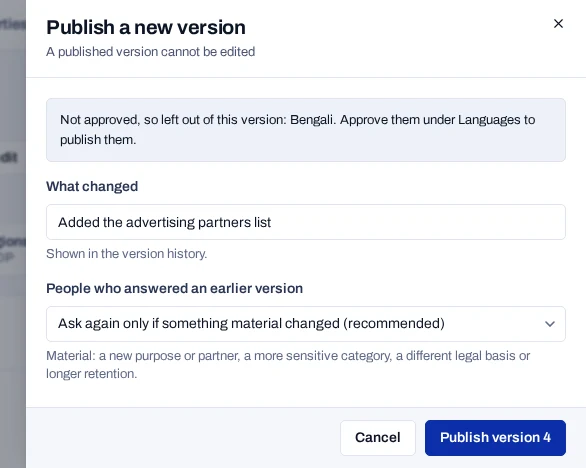
- Choose Publish version N at the top, where N is the next version number. Your draft is saved first.
- Read which languages are left out, if the panel names any. Only approved languages are published.
- Under What changed, describe the change in a few words, such as
Added the advertising partners list. - For version 2 or later, choose what happens to People who answered an earlier version.
- Choose Publish version N to confirm.
The console confirms the version number. If returning visitors will be asked again, the message says so. The form now shows Live and its version.
A version is a frozen copy of the draft. It holds the wording, layout, settings, approved languages and purposes as they were when you published. It cannot be edited afterwards.
Region rules are not part of a version
A change on the Regions page takes effect straight away. Only the form itself goes through draft and publish.
Publishing also sends the form.published webhook to any endpoint subscribed to it. See Webhook endpoints.
Read the status badges#
The top of the form shows where it stands.
| Badge | Meaning |
|---|---|
| Draft | Visitors cannot see the form yet. |
| Never published | There is no version 1 yet. |
| Live | A version is published. |
| Version 3 | The version visitors see now. |
| Unpublished changes | The draft has changed since the last version. |
| Waiting for approval | A second person must approve before the version goes out. |
Fix a refused publication#
The console does not publish, and says why, in three cases.
- The form has no purposes. Add at least one in the Purposes panel.
- The form is shown in India and its notice is missing something. The message lists each item. See What a notice for India needs.
- The banner's custom CSS or custom layout cannot be used. The Brand panel shows the problem beside the field. See Style the banner.
Fix what is listed, then publish again.
If the console says the version was sent for approval, your project requires a second person. See Approve a publication.