

Track a notice campaign
Record what your sender delivered, read who answered a notice campaign, send new links to people who have not, and export one person's evidence.
Once links are out, the campaign page shows who was sent the notice and who answered. Delivery figures come from your sender and are labelled so.
Upload delivery reports#
- Export a CSV from your mailer or SMS gateway with the link id of each message.
- On the campaign, choose Upload delivery report and choose the file.
- Match Link id and the status column.
- List the Values that mean delivered and the Values that mean failed, such as
DELIVRDandUNDELIV. - Choose Upload.
Reports are stored as your sender reported them. They are not sealed and are in no proof. A later report for the same link replaces an earlier one.
Read the coverage#
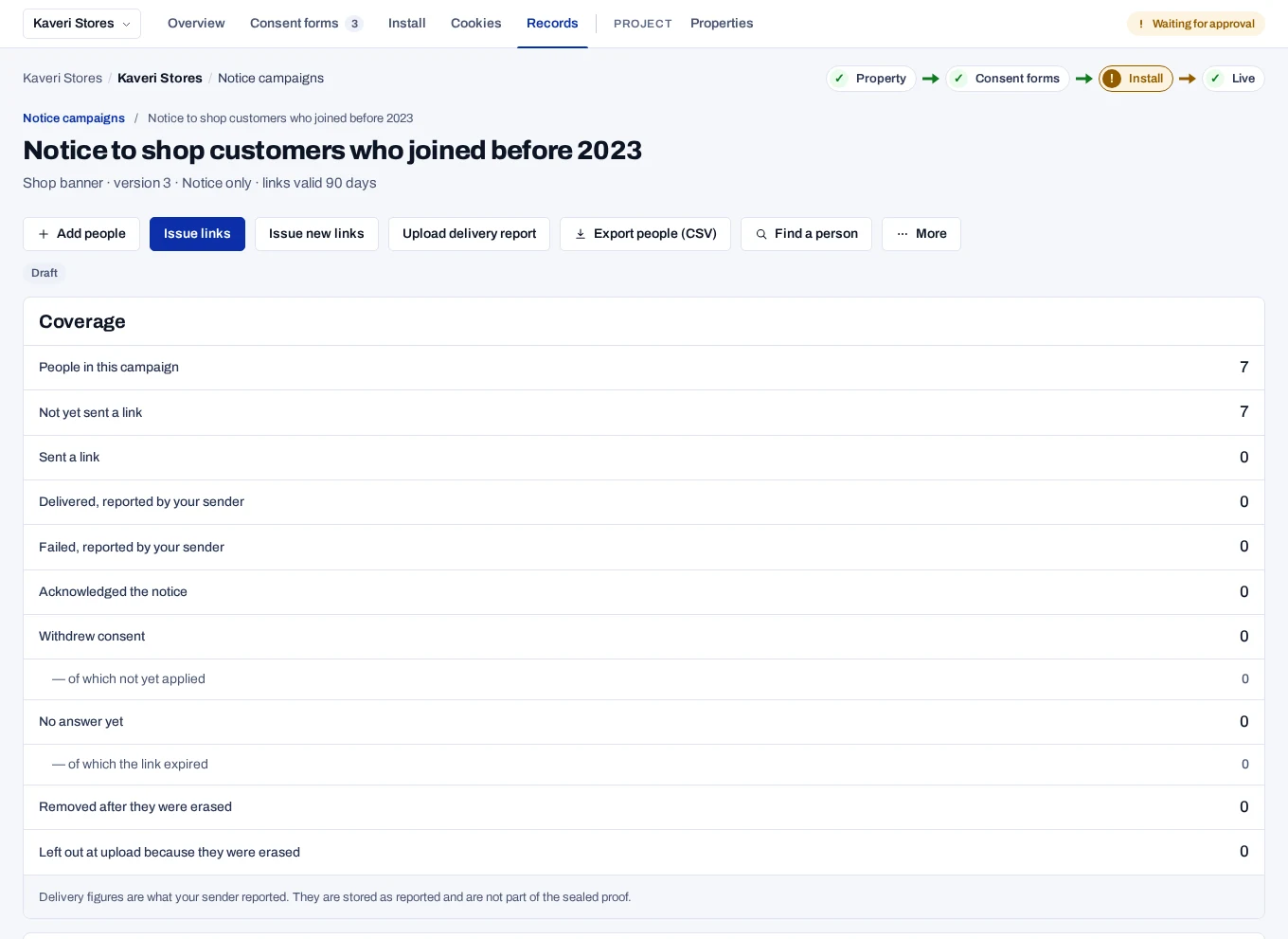
| Row | Counts people who |
|---|---|
| People in this campaign | Were added, including those removed later |
| Not yet sent a link | Have no link yet |
| Sent a link | Were in at least one batch |
| Delivered, reported by your sender | Your sender reported as delivered |
| Failed, reported by your sender | Your sender reported as failed |
| Acknowledged the notice | Chose I have read this notice |
| Withdrew consent | Chose Withdraw my consent |
| — of which not yet applied | Withdrew, while their records are still being withdrawn |
| No answer yet | Were sent a link and have not answered |
| — of which the link expired | Have no answer and an expired link |
| Removed after they were erased | Were erased after they were added |
| Left out at upload because they were erased | Were in a file but already erased |
When a withdrawal is not yet applied, the page shows Withdrawals not yet applied with a count. The service keeps trying, and meanwhile a consent check already answers withdrawn for those people. Whoever runs the deployment is alerted by notice_withdrawals_pending; see Monitor a deployment.
Send new links to people without an answer#
- Choose Issue new links.
- Under Who gets a new link, choose people whose link expired, everyone who has not answered, or people whose delivery failed.
- Confirm, then download the new batch when it is Ready.
A new link replaces the person's earlier one, which then shows Link replaced. People who answered get no new link.
Export evidence for one person#
- Choose Find a person.
- Choose By identifier or By link id, and enter it.
- Choose Export evidence (JSON).
The file is signed. It holds the person's links, their answer, and proofs that tie them to the batch and the day's signed root. Delivery shows as reported by your sender. See How notice campaigns are proven.
Close the campaign#
On More, choose Close campaign and confirm. Links not yet used then show Notice closed. Answers already given stay, with their proof. A closed campaign can only be renamed, and a campaign that issued links cannot be deleted.