

Change the look
Set where the banner sits, its colours, font and buttons, and check the result in the real preview before you publish.
Match the banner to your site: where it sits, its colours, its font and its buttons. What you set is saved with the draft and used from the next version you publish.
Set the placement and buttons#
- Open Consent forms and select the form.
- In the Appearance panel, choose a Placement: Bottom bar, Corner card or Centre dialog.
- Choose an Accent colour for the main buttons.
- Set the three switches in the table below.
- Choose Save draft.
| Switch | What it does | Starts |
|---|---|---|
| Show a reject-all button | Puts the reject button on the banner. Most privacy laws want refusing to take no more effort than accepting. While an opt-in rule serves the form, it cannot be published with this off. | On |
| Show the preferences link | Lets visitors choose purpose by purpose. | On |
| Block the page until they choose | Hides the page until the visitor answers. Some regulators treat this as coercive. | Off |
Match your brand#
- In the Brand panel, open the Theme tab.
- Set the Font family and the Text size.
- Set Button corners (px) and Maximum width (px).
- Choose a Button style and a Shadow.
- Under Colours, enter your colours. Leave one empty to keep the default.
- Choose Save draft.
Accept and reject always share one style, so neither can stand out over the other. If a text colour has too little contrast with its background, the panel says so. A readable colour is used instead.
Custom CSS and Custom layout are for developers. See Style the banner.
Check the real banner#
The preview at the top of the Brand panel is the real banner. The same runtime your site uses draws it, and it records nothing.
- Visitor from chooses the place. Places this form is shown in come first.
- Desktop and Phone change the width.
- Show preferences opens the preferences dialog. Close dialog closes it.
- For an opt-out place, Show opt-out dialog and Browser sends Global Privacy Control show those cases.
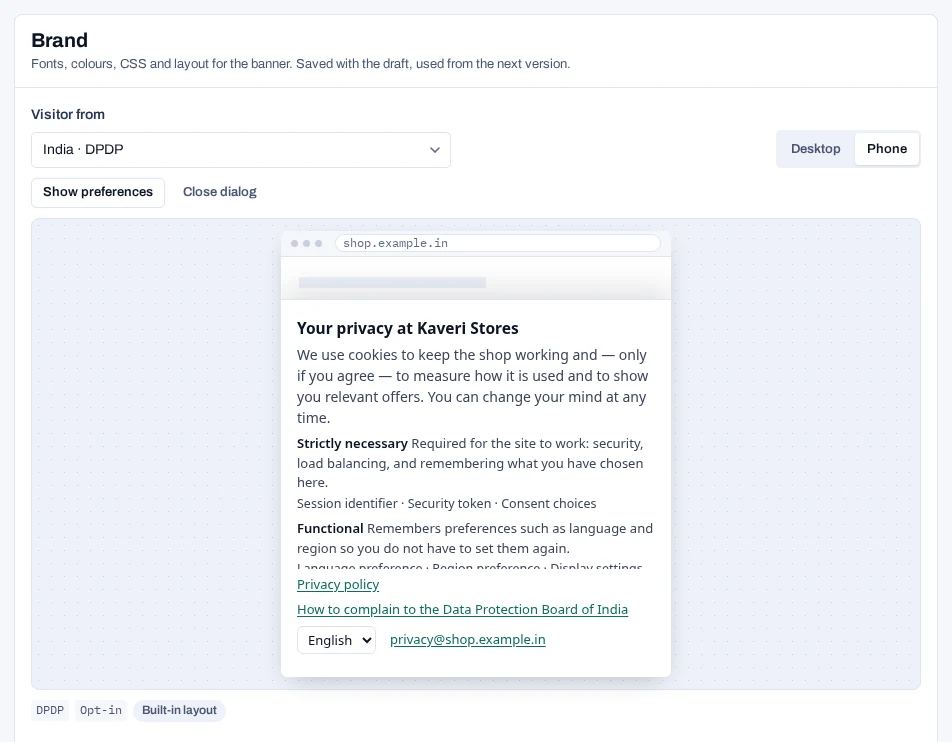
Tags under the preview show the law and the consent model for that place. They also show whether your own layout or the built-in one is used.
- Not published yet — drawn from the draft means visitors cannot see the form yet.
- This form is not shown here means no rule shows the form in that place.
The Live preview on the right of the builder is a quick sketch. Use the Brand preview to see what a visitor gets.