

Handle a request
Open a rights request, carry it out on the person's consent records with one button, and close it before its deadline.
Handle each rights request before its deadline. For access, erasure and withdrawal, one button carries out the request on the person's consent records and closes it.
Before you start#
- A request from the hosted page needs the badge Identity confirmed. Until the person confirms, the panel says Can be completed once the person confirms their email.
- A request from a parent, guardian or nominee needs Authority confirmed. See Handle a request made for someone else.
- For a request your team logged, check who the person is yourself.
Carry out the request#
- Open Properties and choose Requests. The list shows the soonest deadline first.
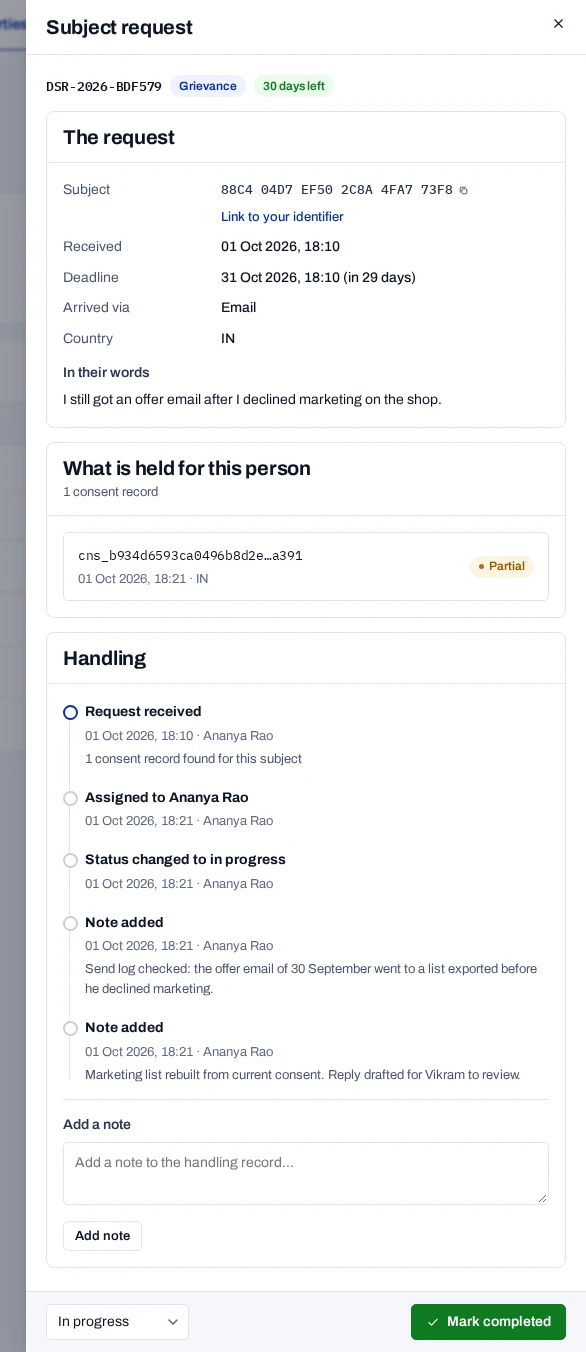
- Click the request. The Rights request panel opens.
- Under Handler, choose who handles it, or choose Assign to me.
- Read The request, then the records under What is held for this person.
- Under Reply to the person, write your answer.
- Choose the button for the request type, from the table below.
| Request type | Button | What it does |
|---|---|---|
| Access, Portability | Export and complete | Downloads a file ending .export.json. Send it to the person in a safe way. |
| Erasure | Erase and complete | Withdraws any consent still in force, then erases the person's identifiers on every record. |
| Withdraw consent, Objection | Withdraw and complete | Withdraws every record that is not already withdrawn or expired. |
| Rectification | Mark completed | Needs What was corrected. Correct the data in your own systems first. |
| Restriction, Grievance | Mark completed | Closes the request only. Do the work in your own systems first. |
| Nomination | Record nominee | See Record or cancel a nomination. |
Each button sets the status to Completed and adds what was done under Handling. To record more, type under Add a note and choose Add note.
The person reads your reply on their request status page. The
subject_request.completed webhook carries it as reply, for your systems
to email. The product sends the person nothing. Your systems also act on
consent.withdrawn and subject.erased.
What the export file holds
A signed receipt for each consent record, a summary of each purpose, and every partner the data was shared with. It also lists the person's nominations and your contacts. Data in your own systems is not in it.
Link your identifier#
A person may write with an email address while your site keeps their consent under a customer number. The panel then says No records match what the person entered.
- Under Subject, choose Link to your identifier.
- Choose the kind: User id or token, Email, Phone or Session id.
- Type your identifier for this person and choose Link.
The console says how many consent records it found. The buttons then act on those records. Capital and small letters matter for everything except email.
Reject or reopen a request#
Use the status list at the bottom of the panel. Choose Rejected to refuse a request, for example when you cannot tell who the person is. Write the reason under Reply to the person first. To reopen a closed request, choose an open status such as In progress.
Watch the deadline#
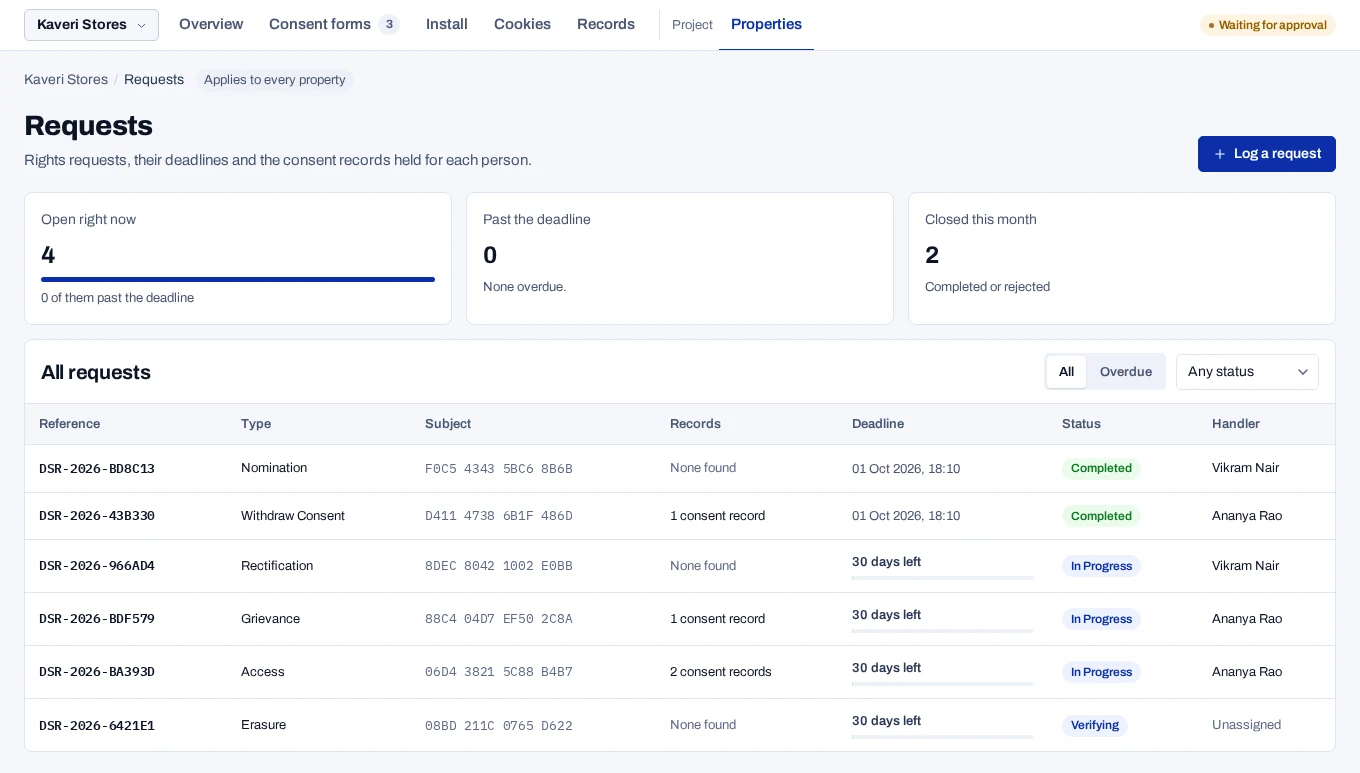
The Deadline column shows the days left. It turns amber at five days or fewer. It turns red as soon as the deadline passes, and a part day counts as a whole one. Choose Overdue to list late requests only.
The deadline is 30 days from when the request was sent or logged, unless your administrator changed it. For India it is never more than 90 days.
Related#
- Ways people send a rights request
- Handle a request made for someone else
- Log a request
- Change project settings, for the deadline and the contacts