

Choose regions
Decide which consent form visitors from each country or state see, starting from a law preset or a rule of your own.
A region rule shows one banner form to visitors from the places it covers. Add a rule for each law you follow, then cover everywhere else. Only Cookie and tracking consent forms have rules.
Add a law#
A law preset covers the places the law applies to and sets the consent model it expects.
- Open Consent forms and select the form.
- Choose Regions at the top.
- Under Add a law, choose a law, such as DPDP for India.
- Choose Everywhere else to cover the remaining countries.
Each rule is created and turned on at once. Rule changes do not wait for a publish. If another rule already has some of the places, the console skips them and tells you which.
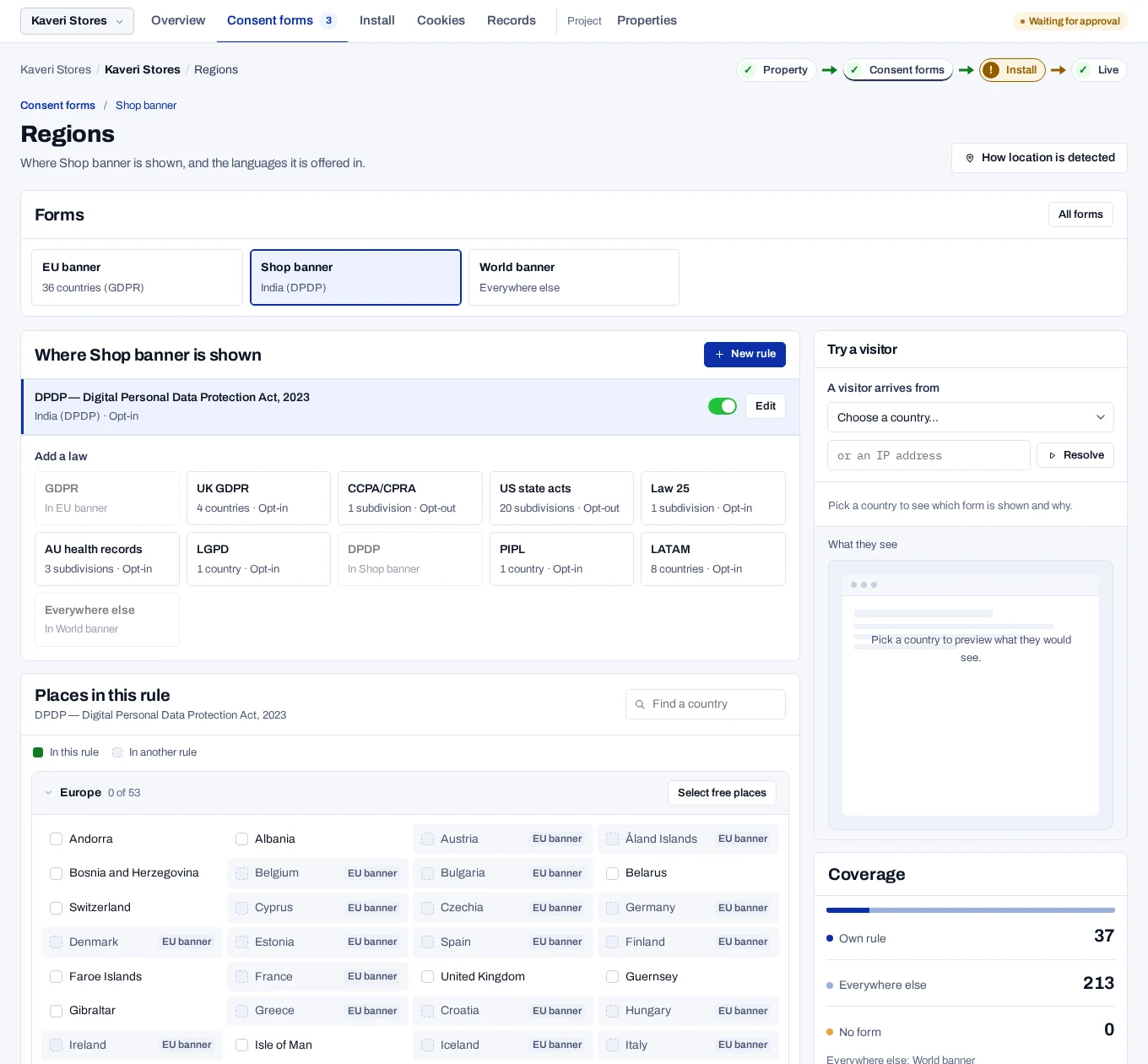
| Preset | Covers | Consent model |
|---|---|---|
| DPDP | India | Opt-in |
| Everywhere else | Wherever no other rule matches | Opt-in |
A deployment for India offers these two, and every rule asks before anything optional runs. When the API starts, it turns off rules made for another law and makes any other rule opt-in. The DPDP Act also covers a business abroad that offers goods or services to people in India, so the rule for everywhere else asks the same way. To offer the presets for other laws, such as GDPR or CCPA, the operator sets PRODUCT_SCOPE=global. See Configuration.
A preset is a starting point, not legal advice. Check its places and consent model against your own duties.
No rule means no banner
A visitor whose place no rule covers is not asked anything, and your tags are not held back for them. Keep an Everywhere else rule unless that is what you intend.
Create your own rule#
- On the Regions page for the form, choose New rule.
- Enter a Rule name.
- Under Covers, choose Countries or subdivisions, Whole continents or Everywhere else.
- Choose a Law, or leave None. A law sets the consent model it expects.
- Check the Consent model.
- For countries, choose Continue and select the places on the grid. For continents, tick the Continents.
- Choose Create rule.
The rule appears in the form's list. The Law is recorded on every consent collected under it.
| Consent model | What it means |
|---|---|
| Opt-in | Nothing optional runs until the visitor agrees. |
| Opt-out | Optional purposes run until the visitor declines. |
| Notice only | The visitor is shown the notice. Nothing waits for an answer. |
The most specific rule wins: a state or province first, then a country, a continent, and last Everywhere else. A place can be in only one rule. One marked In another rule is locked until you remove it there.
Set the law for India#
India's checks and notice follow the rule's Law, not the country.
Set the law on your own rule for India
If you cover India with a rule of your own, set its Law to DPDP. Otherwise the checks do not run. Visitors in India then get no itemised notice, complaint link or language chooser.
A DPDP rule must be Opt-in. For a published form, the console also checks the notice when you add or turn on the rule. See What a notice for India needs.
Change or remove a rule#
Each rule in the form's list has a switch and an Edit button.
- The switch turns the rule on or off. A rule that is off shows no form to anyone.
- Edit changes the name, law, consent model and note.
- To change the places, select them on the grid and choose Save.
- Delete, inside Edit, removes the rule. Consent already collected keeps its evidence.