

See version history
List a form's published versions, what changed in each one, and whether returning visitors were asked again.
Open the version history to see what visitors were shown and when. Use it to check what changed between versions, or to copy a version's content hash.
Open the version history#
- Open Consent forms and select the form.
- Open Actions at the top and choose Version history.
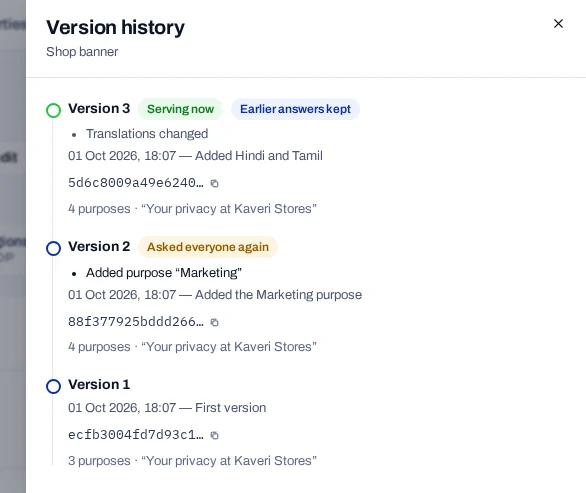
The panel lists the most recent 20 versions, newest first. The newest is marked Serving now. A form with no versions shows Never published.
Read a version#
Each version shows:
- when it was published, and its change note
- Asked everyone again or Earlier answers kept, from version 2 onwards
- the material changes the console found
- the other changes, such as new wording or a removed purpose
- its content hash, which you can copy
- the number of purposes, and the heading it was published with
When a second person approved the version, the note names both people.
Every consent record points at the version the person was shown. That is how you prove later what they agreed to. See How consent is proven.
Go back to earlier wording#
A published version cannot be changed or brought back. To return to earlier wording, publish it as a new version.
- Edit the draft so it matches the wording you want.
- Choose Save draft.
- Choose Publish version N and confirm.
See who changed the form#
Choose Audit at the top of the form. It lists recent changes to the form and its region rules, and who made them. For changes across the whole project, see Audit log.