

Scan your site
Scan a site to see which cookies, storage keys and third-party hosts it sets before and after a visitor accepts, and rescan on a schedule.
Scan a site to find anything it sets before a visitor has agreed. Scan again after each change to the site's tags. A scan collects names and hosts only, never values.
Before you start#
- The start page must be on a public address.
- If your site blocks automated visitors, allow the scanner. Its user
agent contains
PIEDAPConsentScanner/1.0.
Start a scan#
- Open Trackers and choose Scan site.
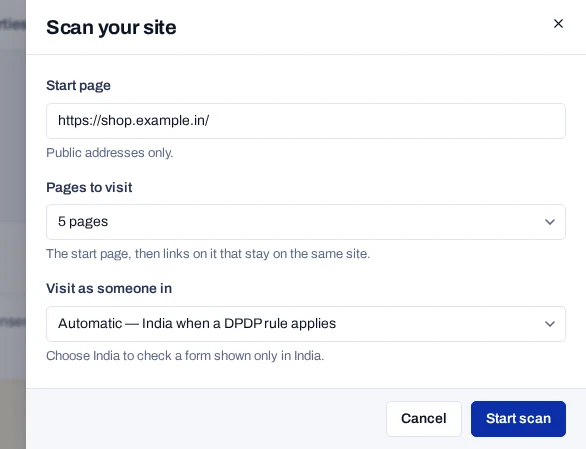
- Under Start page, type the address to begin from, such as
https://shop.example.in/. - Under Pages to visit, choose 1, 3, 5, 10 or 20 pages. The scan follows links that stay on the same site.
- Under Visit as someone in, leave Automatic — India when a DPDP rule applies, or choose India.
- Choose Start scan.
The top of the page says Checking and the site while the scan runs. A scan of many pages can take up to about four minutes, and you can leave the page. The page refreshes on its own when the scan ends. Only one scan runs for a project at a time.
What the scan does on your site
The scan acts like a first-time visitor. It opens the start page and makes no choice, so everything present at that moment ran before consent. If your banner is shown, it presses the accept-all button. It then follows links to other pages and notes what appeared only after accepting.
On each page it records cookies with their lifetime, and keys in local and session storage. It also records the other companies' servers the page contacted. Your own domain and its subdomains are not counted.
Read the result#
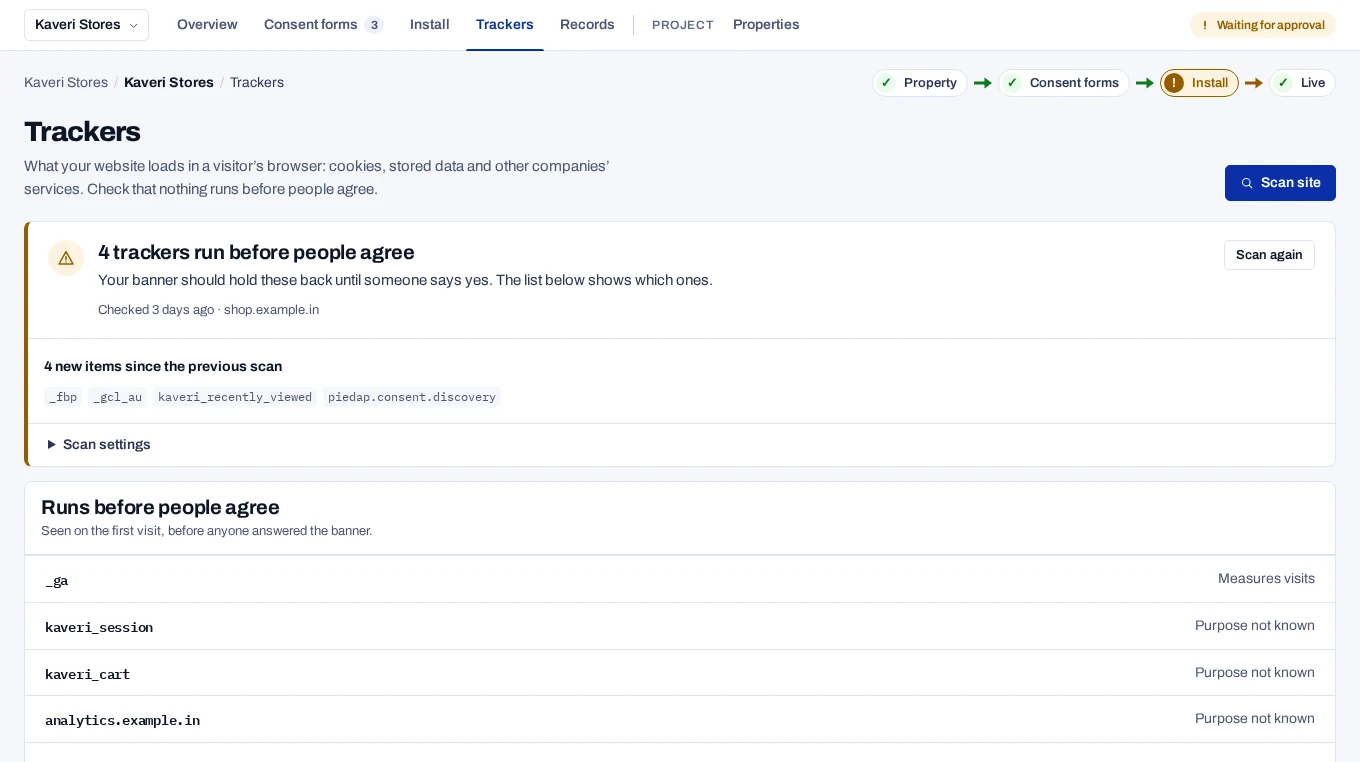
The top of the page answers one question: does anything run before people agree?
| Result | Meaning |
|---|---|
| 2 trackers run before people agree, or another number | Items that need consent were present before the banner was answered. Bring this to zero. |
| Nothing runs before people agree | Nothing needing consent ran early, but some items still need a decision. |
| Your site looks right | Nothing ran early and every item has a purpose. |
| The last scan did not finish | The site could not be opened. Check the start page opens in a browser, then choose Scan again. |
| Scanning is not available here | The deployment cannot open a browser. Ask whoever runs it to set up the scanner. Technical details shows the reason. |
Runs before people agree
This panel lists each item that needs consent and was present before the answer, with the company behind it. Open How to fix it (for your developer) and pass it on, or see hold tags until consent.
If the page says No consent banner showed on the first page, check that the consent script is installed on the start page.
Under the result, the page compares the scan with the one before it. It shows No changes, or each new item.
Rescan on a schedule#
The schedule sits under Scan settings in the result, after the first scan.
- Open Scan settings.
- Under Check automatically, choose Every week or Every month.
- Under Start page, type the address to begin from.
- Choose Save schedule.
A scheduled scan visits five pages. There is one schedule for the whole project. With more than one property, the scan is filed under the property whose origins include the start page.
When any scan finds something the previous scan did not, your systems
receive the scan.changes_detected webhook.