

Create a form
Start a consent banner, privacy notice or email opt-in form as a draft, and choose the purposes it asks about.
Create a consent form for each thing you ask people to agree to. The form belongs to the property chosen in the picker at the left of the tab bar.
Before you start#
Add your purposes first. A new form starts with every purpose in the registry.
Choose a form type#
| Type | What it is | How visitors reach it |
|---|---|---|
| Cookie and tracking consent | The banner shown on a visitor's first visit. | Region rules choose it from the visitor's place. |
| Privacy notice | The full notice, built from your purposes. | Opened by its key. |
| Email and marketing opt-in | Double opt-in for newsletters and campaigns. | Opened by its key. |
Create the form#
- Open Consent forms and choose New consent form.
- Choose a type. The form opens in the builder as a draft.
- In the Purposes panel, choose the cross beside each purpose this form does not ask about.
- To add a purpose, pick it from Add a purpose….
- Use the arrows to put the purposes in the order visitors see them.
- Choose Save draft.
The form shows Draft and Never published. It has starter wording in English and the property's privacy policy link. Under the title is its Key, which developers use to name the form.
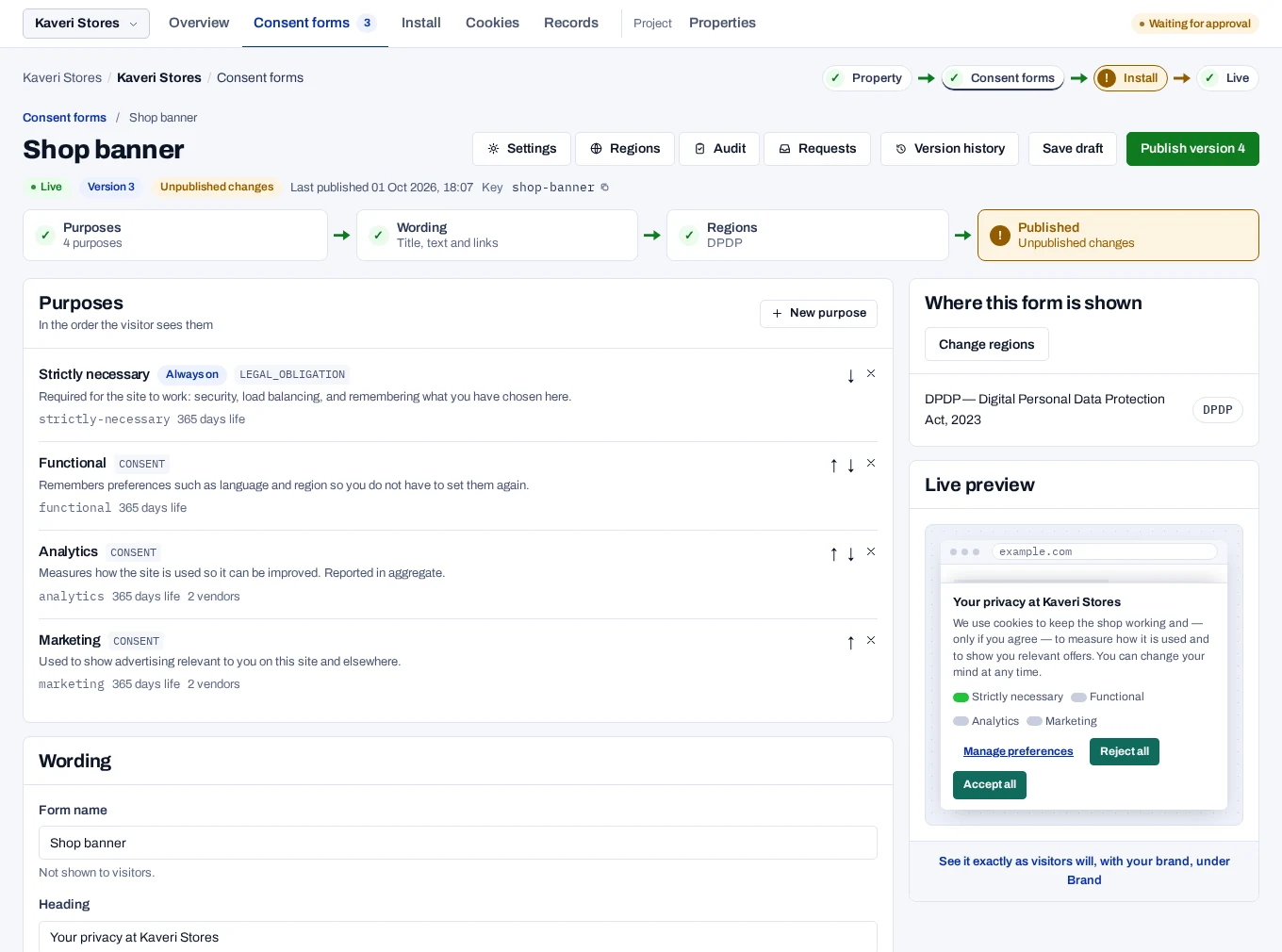
A checklist shows what the form still needs: Purposes, Wording, Regions for a banner form, and Published. Select a step to go to it.
Changes are kept only when you choose Save draft or publish. A purpose you remove stays in the registry. New purpose creates one in the registry and adds it to this form.
Set how the form behaves#
Choose Settings at the top of the form. Changes take effect when you publish.
| Setting | What it does | Starts |
|---|---|---|
| Privacy button | Stays on the page so visitors can reopen their choices. | On |
| Button position | Bottom left or Bottom right. | Bottom left |
| Let visitors choose partners one by one | Gives each partner its own switch. | On |
| Ask "Are you 18 or older?" | Asks the visitor's age before the purposes: Never, Where the DPDP Act applies or Everywhere. See DPDP duties for rights and children. | Never |
| Page for a parent or guardian | Your page where a parent or guardian gives consent. The banner shows it to a visitor who answers No. | Empty |
| Honour Global Privacy Control | Treats the browser's signal as an opt-out, where the form is opt-out. | On |
| Google Consent Mode v2 | Sends Consent Mode defaults and updates for you. | On |
| IAB Global Privacy Platform | Publishes Global Privacy Platform signals. | Off |
| IAB TCF v2.2 | Publishes TCF consent strings for the vendors you pick. | Off |
For visitors in India the privacy button stays even when the switch is off. The exception is a page with its own link that opens the preferences.
IAB TCF v2.2 needs a CMP ID and at least one vendor. Enter your Publisher country as well. See IAB TCF and GPP.
An Email and marketing opt-in form has one setting instead, Require double opt-in. It starts on.
Find a form in the list
Consent forms lists every form of the property with its type, where it is shown, its version and its status. Filter by All, Live, Draft or Archived, or search by name or key. No regions chosen on a published banner form means no visitor sees it yet. The console has no control to archive or delete a form.