

Import consent from a file
Bring consent your organisation collected earlier into Records from a CSV file, check every row, then write them as sealed records.
Use Import CSV to bring in consent your organisation collected before it used the product. Each row becomes a sealed record. A check comes first and writes nothing.
Prepare the file#
- A header row, then one row per person, saved as CSV UTF-8.
- One column with the person's identifier: a customer id, email address, phone number or device id. Other identifiers can sit in more columns.
- One column with the date each person consented, all in one format.
- One column for each purpose on the form that is not always on, holding yes or no.
- Phone numbers in international format, such as
+919876543210. - Only people who consented. People you hold data for without consent do not belong in this file.
If these people saw an older notice, publish it as its own form first and import against that form. Columns, formats and limits are in Consent import file.
Check and write the file#
- Open Records and choose Import CSV.
- Choose the CSV file, the Form and its Version, then Live or Test.
- Under Basis, choose Consent given before the DPDP Act commenced only if that is your statement about these people. Add the Notice reference (optional) or the Notice file (optional), then choose Next: columns.
- Match each field to a column of your file and set the Date format. Choose Next: check.
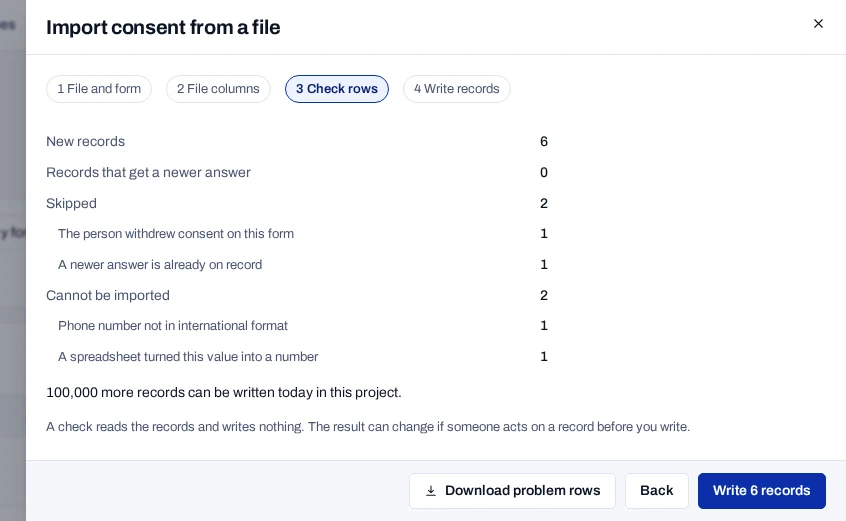
- Choose Check, the button that names the number of rows, such as Check 1,250 rows. Nothing is written.
- Read the result. To see why rows were skipped or cannot be imported, choose Download problem rows.
- Choose Write, the button that names the number of records, and confirm.
- Keep the tab open until Import finished appears.
To see what one import wrote, choose Show imported records. Each record shows Imported from with the file name, and its Basis and Notice reference when you set them.
What an import never changes#
An import never replaces a newer answer, a withdrawal or an erasure. Such rows are skipped with a reason. The check is made under every identifier the row names or that is linked to one of them. A person known only under an identifier the row neither names nor links is out of its reach.
Rows already imported are skipped as Already imported, so you can run the same file again. If the connection drops while records are written, choose Try this batch again. Rows that batch had already written come back as Already imported, and the import's totals count each row once. By default, imports may write up to 100,000 records a day in a project. When the limit is reached, run the file again the next day.
Who is told#
No webhook is sent for each record. When the import finishes or is stopped, one consent.imported event is sent with the counts and no identifier. A system that follows records through webhooks learns of the import from that event. To hand it the records, open them with Show records under Past imports and choose Export CSV. See the consent.imported event.
Your statement, for your counsel
Consent given before the DPDP Act commenced is your statement. It is sealed into each record as PRE_COMMENCEMENT, and the product does not check it. The label and its use are for your counsel to review before you import.
Related#
- Consent import file, columns and reasons
- Bring in consent given earlier, from your server
- Send a notice to existing customers
- Read a record