

Create a key
Create the key that connects a site, app or server to your project, and copy the secrets that are shown only once.
A key connects a site, an app or a server to your project. Create one for each place you install the product. Every new key starts as a test key.
Before you start#
- Add the site or app as a property. See Manage properties.
- Ask your developers whether their server records or reads consent. If it does, the key needs a secret key.
Create the key#
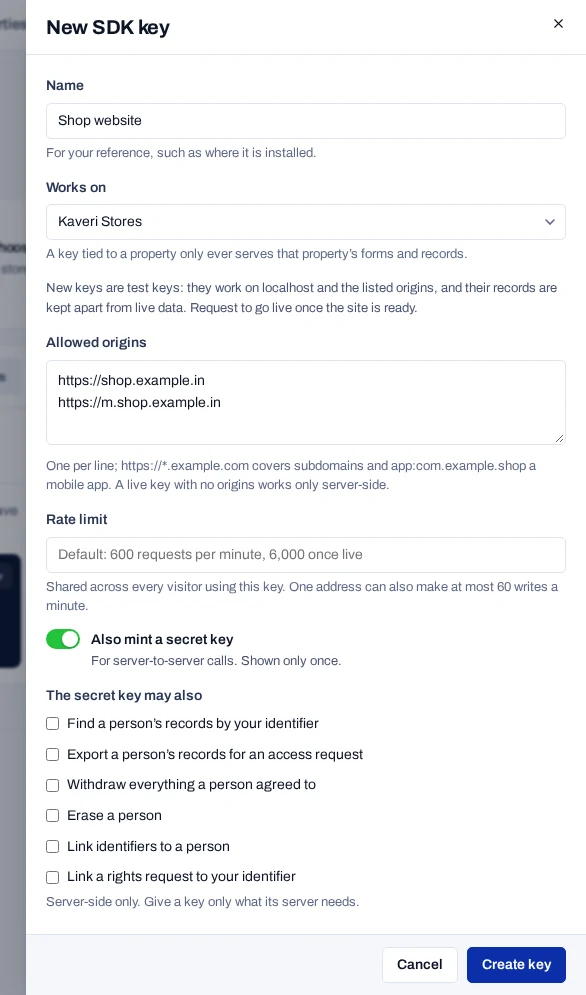
- Open Install and choose New key.
- Type a Name that says where the key is installed, such as
Shop website. - Under Works on, choose the property. For a server key that serves the whole project, choose Every property (for server keys).
- Check the Allowed origins, one per line. They are filled in from the property.
- Leave Rate limit empty for the default, or type your own, from 60 requests a minute upwards.
- Turn on Also create a secret key for your server if a server will use the key.
- Under The secret key may also, tick only what that server needs. If you tick Check whether a person allows a purpose, set Checks per minute or leave 600.
- Choose Create key.
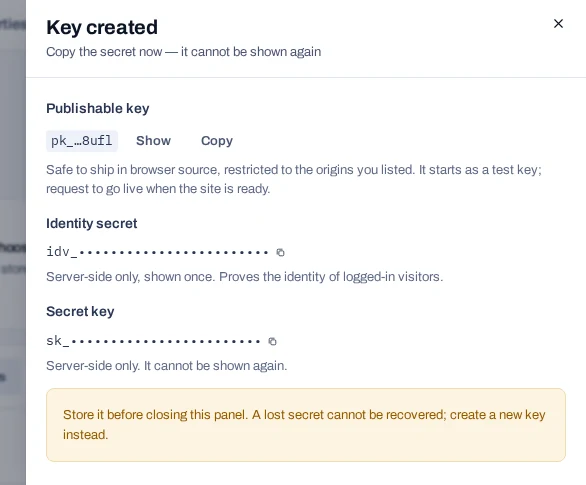
- Copy the values from the Key created panel before you close it.
The new key appears in the Keys panel with a Test badge.
Copy what is shown once#
| Value | Looks like | Where it is used | Shown again |
|---|---|---|---|
| Publishable key | pk_… |
In the page or the app. It only answers the origins you list. | Yes |
| Identity secret | idv_… |
On your server, to prove who a signed-in visitor is. | No |
| Secret key | sk_… |
On your server. Created only if you asked for one. | No |
A lost secret key cannot be recovered. Create a new key instead. A lost identity secret can be rotated.
Secrets stay on your server
Never put an sk_… key or an identity secret in a page or an app.
Rules for allowed origins#
An origin is the scheme and host of a site.
https://www.example.inallows exactly that site.https://*.example.inallows every subdomain, but nothttps://example.initself. List both if you use both.app:in.example.shopallows the mobile app with that application id.
A key cannot allow every origin.
The console cannot edit a key. To change its name, property, origins or rate limit, create a new key and revoke the old one.