

Manage properties
Add a website or app as a property, change its name and origins, and delete one that was created by mistake.
A property is one website or app. It has its own consent forms, regions, keys, cookie list and records. Add one for each site or app you collect consent on. Purposes, policies, project settings, rights requests and webhooks are shared by every property in the project.
Create a property#
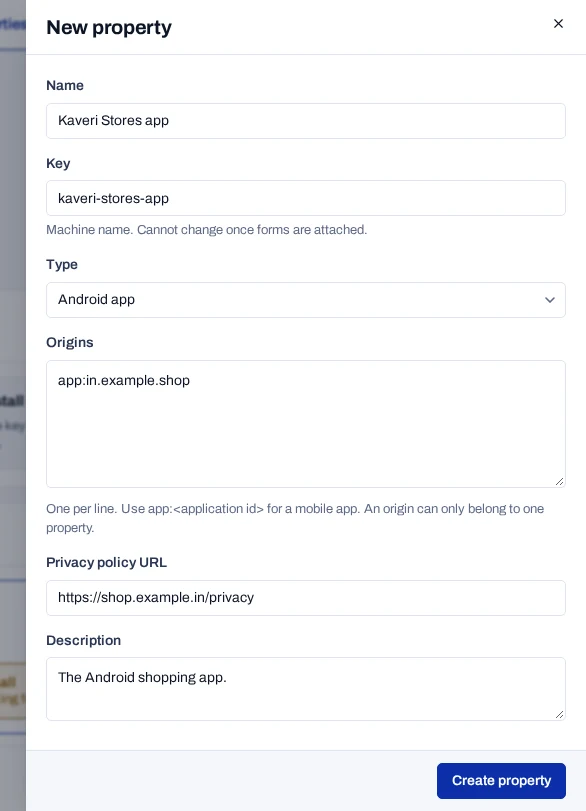
- Open Properties and choose New property.
- Type a Name, such as
shop.example.in. - Check the Key. It is filled in from the name as you type.
- Choose the Type: Website, iOS app, Android app, Connected TV or Server only.
- List the Website addresses, one per line, such as
https://shop.example.in. - Add the Privacy policy URL and a Description if you wish.
- Choose Create property.
The console shows Property created, and the new card appears in the list.
Rules for the key and origins#
- Key. Use lower-case letters, digits, dots, hyphens or underscores. Start with a letter and stay within 60 characters. Two properties in a project cannot share a key.
- The key is fixed. It cannot change once forms are attached, and it is not shown when you edit the property.
- Origins. An origin is the address a site is served from.
https://*.example.incovers every subdomain. For a mobile app, writeapp:and the application id. A property can have up to 50. - One origin, one property. If another property already covers an origin, the console refuses it and names that property.
When a project has more than one property, the origin matches a visitor to the right one. A property without origins then shows No origins listed, so visitors cannot be matched to it. A project with a single property works without them.
Find and select a property#
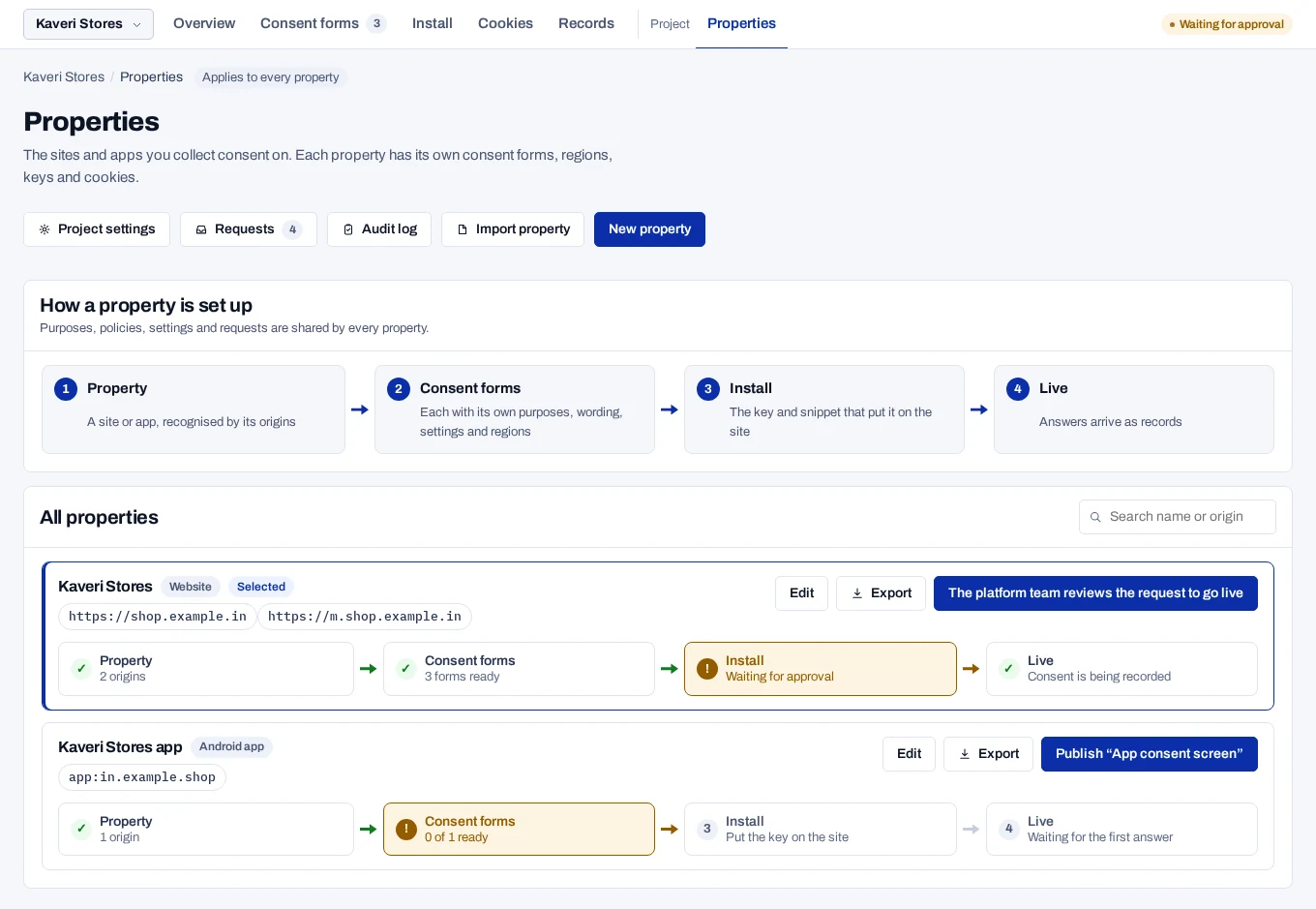
Each card shows the property's name, type, origins and where it stands in set-up. The button on the right opens the next unfinished step, or reads Open. Use Search name or origin in a long list.
Selected marks the property the tabs are showing. The property picker at the left of the tab bar changes it.
Edit a property#
- On the property's card, choose Edit.
- Change the Name, Type, Website addresses, Privacy policy URL or Description.
- Choose Save.
The console shows Property saved.
Delete a property#
- On the property's card, choose Edit.
- Choose Delete, then confirm.
The console shows Property deleted. Deleting a property also removes its region rules, its cookie list and its scans.
Forms and keys block deletion
You can delete a property only while no forms or keys belong to it. A revoked key still counts, and the console cannot delete a form or a key. So you can delete only a property that never had either, such as one created by mistake.