

Follow up processor tasks
Find processor tasks that are open or overdue, record what each processor reported with an evidence file, and check a file against a report.
When a person withdraws, a consent expires or a person is erased, each registered Data Processor gets a task to stop or erase. Follow the tasks up here and record what each processor reported.
Find the tasks to follow up#
- Open Properties and choose Processors.
- Read Open right now, Overdue and Refused at the top.
- To see what is late, set the status filter to Overdue. Narrow it by partner or action if you need.
- Choose a task to see its purposes, due date, the sealed event that caused it and its reports.
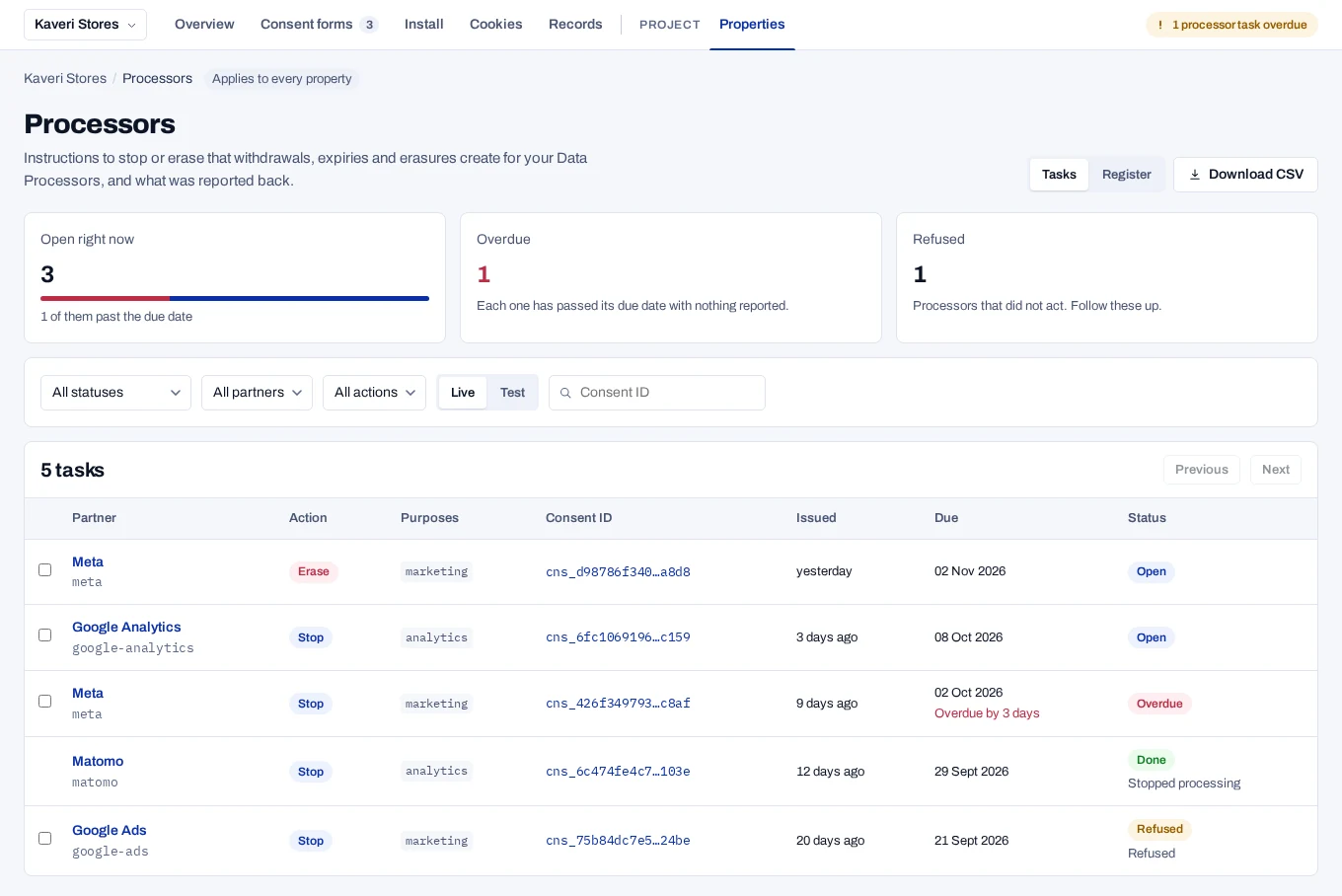
A task is Overdue when it is open past its due date. Once a day, at 06:00 in the API's time zone, each processor with overdue live tasks raises one propagation.overdue webhook. While any task is overdue, the console's status line shows how many, unless something more urgent is shown there.
Record a report#
- Tick the tasks of one partner that the report covers, and choose Record a report.
- Under What did the processor report?, choose Stopped processing, Erased, Kept under a law or Refused.
- Fill in Completed on and the Processor’s reference, if they gave one.
- Choose the Evidence file, such as their confirmation email saved as a file.
- Choose Save report.
The file stays on your computer. Only its name, size and SHA-256 fingerprint are kept. Kept under a law and Refused need a note: which law and for how long, or why the processor did not act. Do not name the person in the note, the reference or the file name. Text that looks like an email address or a phone number is refused.
Check a file against a report#
On a task with a report, choose Check a file and choose the file. The console fingerprints it on your computer and says Same file or that the fingerprints do not match. Nothing is sent.
What a report means#
- The product records what the processor reported. It does not check that the processor stopped or erased anything.
- The first report of a final outcome stands. A report of the same outcome again changes nothing. A Refused task can later take a final report.
- A task shows No longer needed when the person allowed the processor again before it acted, or when an erase task replaced a stop task. It can still take a report.
- An erase task may let the processor keep processing logs until the date under Keep logs until.
A task holds no identifier. Store the consentId against your user when you record consent: after an erasure, a task may have no fingerprint left to match the person by. Reports can also come through the API; use one key for processor tasks and another for erasure, because they share a budget.