

Manage keys
Read the keys list, change what a secret key may do, rotate an identity secret and revoke a key you no longer use.
Look after your keys on the Install page. The Keys panel lists the keys of the chosen property, and the project keys that work on every property.
Read the keys list#
The publishable key is shown as a hint, such as pk_…Nimw. Show reveals the full key and Copy copies it. Each reveal is written to the audit log.
| Badge | Meaning |
|---|---|
| Test | A test key. |
| Waiting for approval | Your request to go live is being reviewed. |
| Declined | The request was turned down. The reason is under the name. |
| Live | Approved. The key writes live records. |
| Every property | A project-wide key. |
| Secret | The key has a secret key. |
| Identity proofs | The key has an identity secret. |
| Exposed | Its secret was used from a browser. Revoke the key. |
Badges such as Find, Erase, Check consent and Audit log show the scopes of its secret. One line under each key says where it works, its requests per minute, its checks per minute when it may check consent, and when it was last used. Revoked keys are kept at the bottom under Revoked keys.
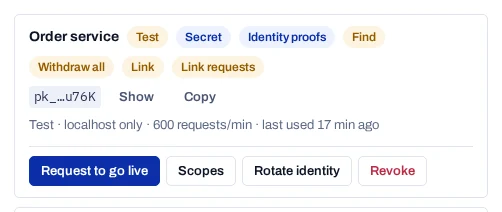
Change what a secret key may do#
Every secret key can record, read, update and withdraw consent records. Scopes add actions on a person as a whole, consent checks, notice links, processor tasks and the audit log.
- Choose Scopes on a key that has a secret.
- Tick or clear the scopes.
- Choose Save scopes.
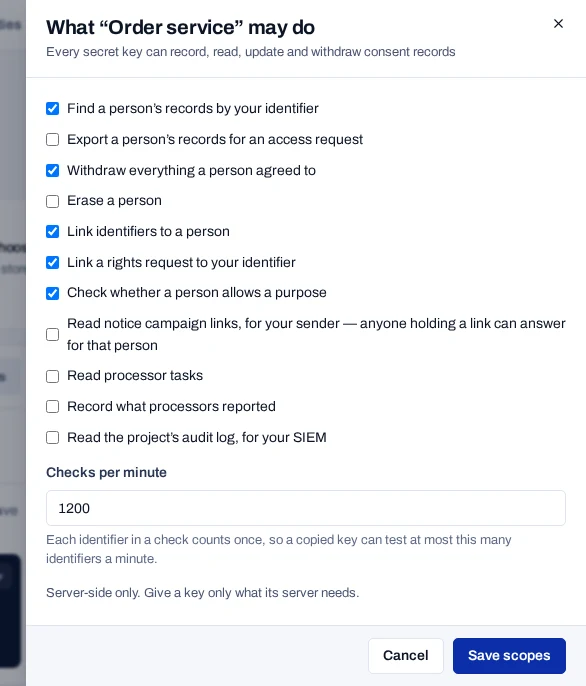
The console shows Scopes saved. The scopes are:
- Find a person’s records by your identifier
- Export a person’s records for an access request
- Withdraw everything a person agreed to
- Erase a person
- Link identifiers to a person
- Link a rights request to your identifier
- Check whether a person allows a purpose
- Read notice campaign links, for your sender — anyone holding a link can answer for that person
- Read processor tasks
- Record what processors reported
- Read the project’s audit log, for your SIEM
With Check whether a person allows a purpose ticked, Checks per minute sets how many identifiers the key may check a minute: 600 unless you change it, at least 60. Give a key only what its server needs. Use one key for checks only, one for processor tasks, and another for erasure.
Rotate the identity secret#
Rotate the identity secret if it is lost, or if someone may have seen it.
- Choose Rotate identity on the key.
- Confirm with Rotate secret.
- Copy the new secret from the panel. It is not shown again.
Proofs made with the old secret stop working at once. Move your server to the new secret in the same change. The publishable key and the secret key are not affected.
Revoke a key#
Revoke a key you no longer use, or one that may have leaked. A revoked key cannot be restored, so install the new key first.
- Choose Revoke on the key.
- Confirm with Revoke key.
The console shows Key revoked. Any site that still uses the key stops showing forms and recording consent at once. Records already collected are not affected.
Revoke an exposed key
A secret key used from a browser is refused and marked Exposed. Anyone may now have it, and whoever holds it can write records to your project. Revoke the key and create a new one.
Until you act, the Install set-up step and Overview report the leaked secret key.