

Record sign-up consent
Record what a person ticks on your sign-up form from your own server, and link their email address and phone number to the record.
Record what a person ticks on your sign-up form, from your own server, under their user id. You finish with a consent record that your team can find by the person's email address. It takes about 15 minutes with Node.js.
Before you start#
- A published consent form with one purpose for each box on your sign-up form. Create a form shows how. The form needs no region rule, because your server asks for it by its key.
- The form's key. Open the form in Consent forms and copy it from the Actions menu. The examples use
kalpa-account, with the purposescourse-updates-by-emailandclass-reminders-by-sms. Put your own form key and purpose keys in their place. - Node.js 18 or later.
Create a secret key#
- In the console, check that the property picker shows the form's property.
- Open Install and choose New key.
- Enter a Name, such as
Sign-up server. - Leave Works on set to that property.
- Turn on Also create a secret key for your server.
- Choose Create key.
- In Key created, copy the Secret key. It is shown only this once.
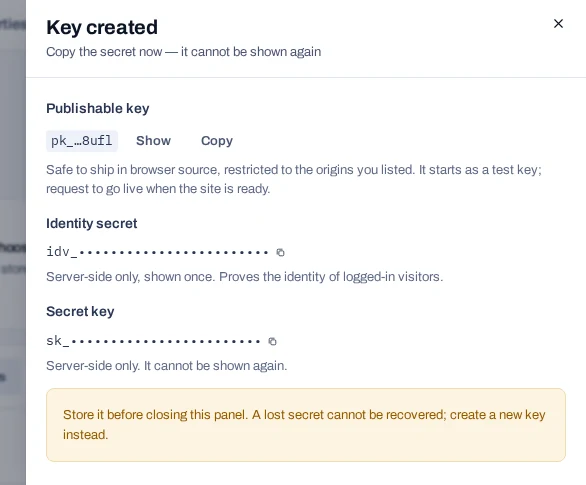
The key is listed in the Keys panel with the Test and Secret badges. A test key writes test records, so you can try everything freely.
Secret keys stay on your server
Never put an sk_ key in a page, an app or a public repository.
Install the SDK#
Your deployment serves the package. Install it in your server's project, or in a new folder to try it out, and put the key in the environment.
npm install https://console.dpconsent.com/consent/sdk/v1/packages/piedap-consent-1.0.7.tgz
export PIEDAP_SECRET_KEY=sk_…
Create one client and share it.
import { ConsentClient } from '@piedap/consent/server';

export const client = new ConsentClient({
  apiUrl: 'https://console.dpconsent.com/consent',
  secretKey: process.env.PIEDAP_SECRET_KEY,
});
Read the form's purposes#
Ask the API which purposes the form offers, so your sign-up form has a box for each.
import { client } from './consent.mjs';

const { form } = await client.resolveForm({
  formKey: 'kalpa-account',
  country: 'IN',
});

for (const purpose of form.purposes) {
  if (!purpose.alwaysOn) console.log(purpose.key, '-', purpose.name);
}
Run node purposes.mjs. It prints one line for each purpose a person can decline:
course-updates-by-email - Course updates by email
class-reminders-by-sms - Class reminders by SMS
Record the answers#
This script stands for your sign-up handler. The person ticked the first box and left the second empty.
import { client } from './consent.mjs';

const user = {
  id: 'usr_8f2K1xQz',
  email: 'kavya.menon@example.in',
  phone: '+919846011223',
};

const record = await client.recordConsent({
  formKey: 'kalpa-account',
  subjectId: user.id,
  subjectType: 'USER_ID',
  countryCode: 'IN',
  interaction: 'SAVE_PREFERENCES',
  pageUrl: 'https://www.example.in/signup',
  decisions: [
    { purposeKey: 'course-updates-by-email', granted: true },
    { purposeKey: 'class-reminders-by-sms', granted: false },
  ],
  identifiers: [
    { subjectType: 'EMAIL', subjectId: user.email },
    { subjectType: 'PHONE', subjectId: user.phone },
  ],
  idempotencyKey: `signup-${user.id}`,
});

console.log(record.consentId, record.status);
Run node signup.mjs. It prints the id of the new record and its status:
cns_3f1c9a7e2b8d4c6fa0e5d1b7c9f2a4e8 PARTIALThe status is PARTIAL because some purposes are allowed and some are not. What each field does:
subjectIdandsubjectTypefile the record under your user id. Always send the type, because it defaults toCOOKIE_ID.decisionsholds one answer for every purpose that is not always on. An empty box is an answer too: sendgranted: false. A missing answer is refused.identifierslinks the email address and phone number, so the record can be found, withdrawn and erased by any of them. They are stored only as keyed hashes.interactionis sealed into the record. It says how the person made the choice.idempotencyKeymakes the write safe to send again. The same key with the same body returns the first response. With a changed body it is refused.
In your real handler, take the answers from the submitted form. Keep record.consentId next to the user, so you can match a later webhook to them.
Find the record in the console#
- In the console, open Records.
- Under Find a person or a record, type
kavya.menon@example.in. - Choose Find.
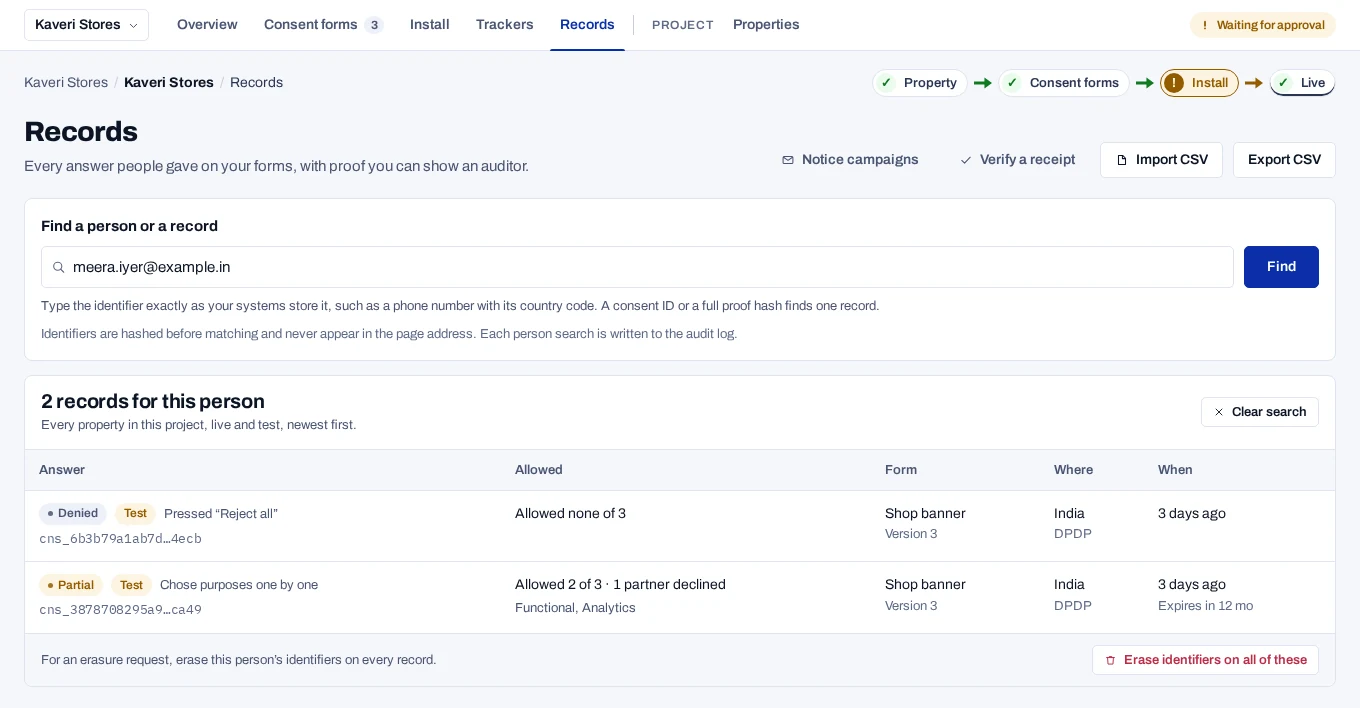
The search lists the record with a Test badge. You recorded it under a user id, and the linked email address finds it. A person search covers live and test records together. The list itself starts on live records only, so the test record is not shown there.
Next steps#
- Build a privacy page so the person can see and withdraw these choices.
- Record consent from your server has the Python and cURL versions, and how to change or withdraw a record.
- Identifiers explains the types, the hashing and the linking rules.
- Record consent for signed-in visitors files banner answers under the same user id.
- Consent in the API reference lists every field and error.